ARO-MAX · Quick guide

Set up your ARO-MAX in three parts: the diffuser, the app, the HVAC connection.

About 15 minutes. You’ll need the box contents, a phone with Bluetooth and — for the HVAC connection — a drill.

8 steps 2 videos Support Mon–Fri 9 AM–5 PM EST 866-276-6359 support@aromely.com
ARO-MAX
The diffuser
1

What’s in the box

  • ARO-MAX diffuser
  • Standard 120 V power supply
  • QR card — scan it to open this guide
  • Wall-mount bracket
  • Bag of fixtures: wall-mount screws, nozzle-to-hose connector, magnetic tags
  • Plastic hose

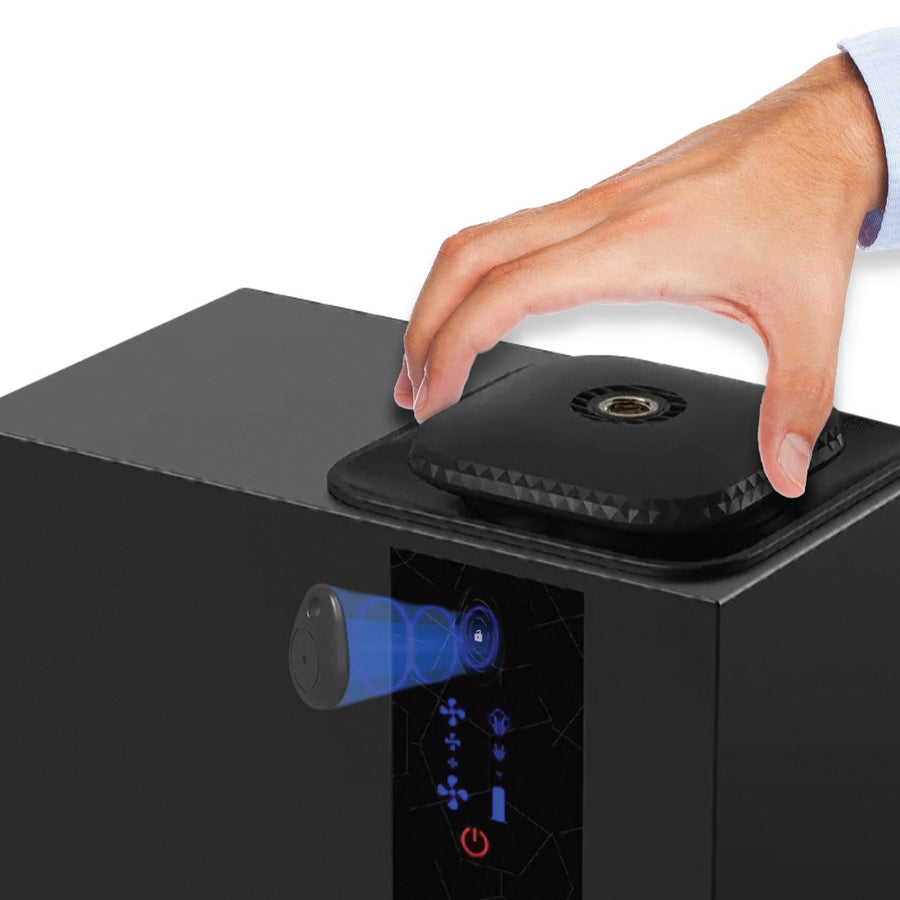
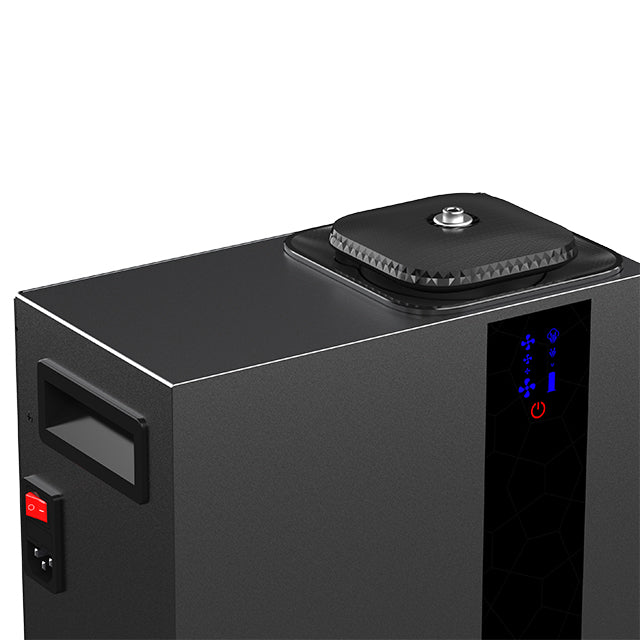
Keep the magnetic tags — you need one to open the diffuser.
ARO-MAX — What’s in the box
The diffuser
2

Add the oil

Important:do not mix oil with water.
  1. Unlock the bottle. Hold a magnetic tag against the lock icon on the front of the unit (see the photo). The lock releases and the bottle can be pulled out.
  2. Pull the empty bottle out and add your Aromely diffuser oil.
  3. Connect the diffuser to power. It starts on its default settings. To change them, set up the app (next step).
ARO-MAX — Add the oil
The Aromely app
3

Get the Aromely app and sign in

  1. Open the App Store (iPhone) or Google Play (Android), search for Aromely and install it.
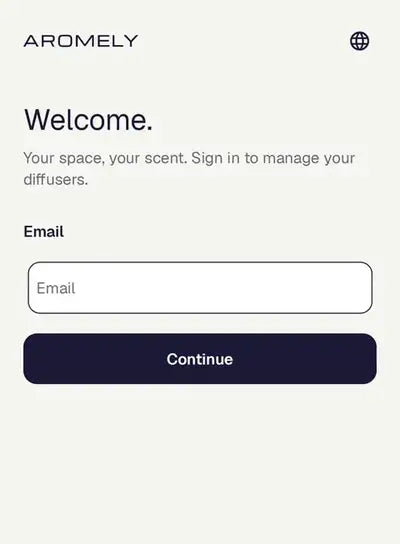
  2. Open the app, enter your email and tap Continue. We email you a sign-in code — type it in and you are in.
  3. When the app asks, allow Bluetooth. That is how it finds your diffuser.

Once signed in, the app does not ask again for about 30 days.

Get the Aromely app and sign in — Aromely app screen
The Aromely app
4

Find your diffuser

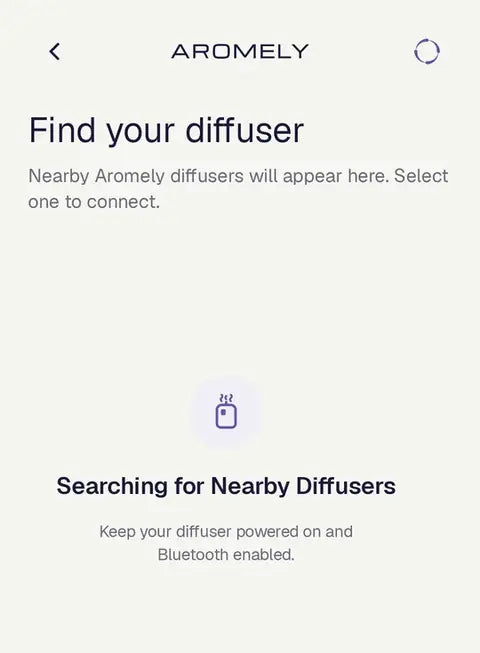
  1. Turn on your diffuser and keep it close to your phone.
  2. On the app’s home screen, tap Find nearby diffusers.
  3. Every Aromely diffuser within Bluetooth range appears in the list. Tap yours to connect.

“Setup Instructions” under the list opens these guides. The globe icon (top right) switches the app between English and Spanish.

Find your diffuser — Aromely app screen
The Aromely app
5

Your diffuser’s screen

The card at the top is your diffuser:

  • Name and Note — tap the pencil to rename it or add a note, e.g. “Living room – Peaceful”.
  • Power, Fan, Battery, Lights — only the rows your model has appear.
  • Headset icon (top right) — opens Technical Support (the last step of this guide).

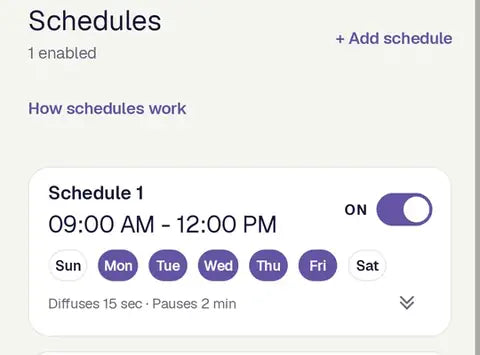
Below it, Schedules: each card shows the hours, the days and the diffusion cycle, with an ON/OFF switch. Tap + Add schedule to create one and How schedules work for tips.

Your diffuser’s screen — Aromely app screen
The Aromely app
6

Set a schedule

  1. Tap + Add schedule, or tap an existing schedule to edit it.
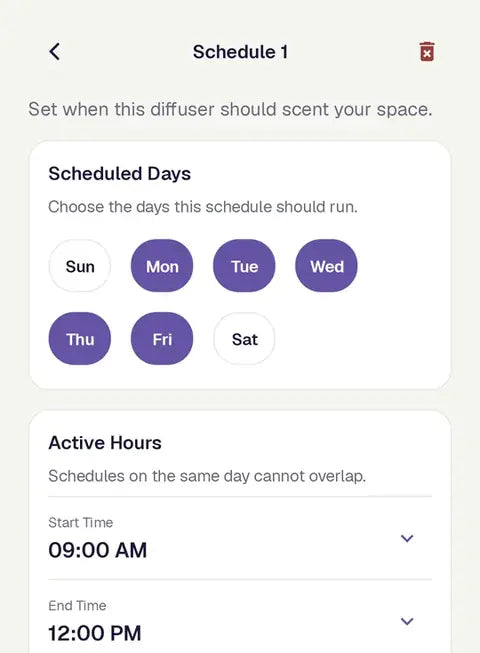
  2. Scheduled Days: tap the days it should run. Selected days turn purple.
  3. Active Hours: set the Start Time and End Time. Two schedules on the same day cannot overlap. The 12-hour / 24-hour switch changes the display only.
  4. Diffusion Cycle: Diffusion Time is how long it scents in each cycle, Pause Time the rest before the next one — for example 15 seconds on, 2 minutes off.
  5. Tap Apply Schedule to save.

Some models hold up to 5 schedules. To delete one, open it and tap the trash icon in the top-right corner. Turning a schedule OFF keeps it but stops it running.

Set a schedule — Aromely app screen
HVAC
7

Connect to your HVAC

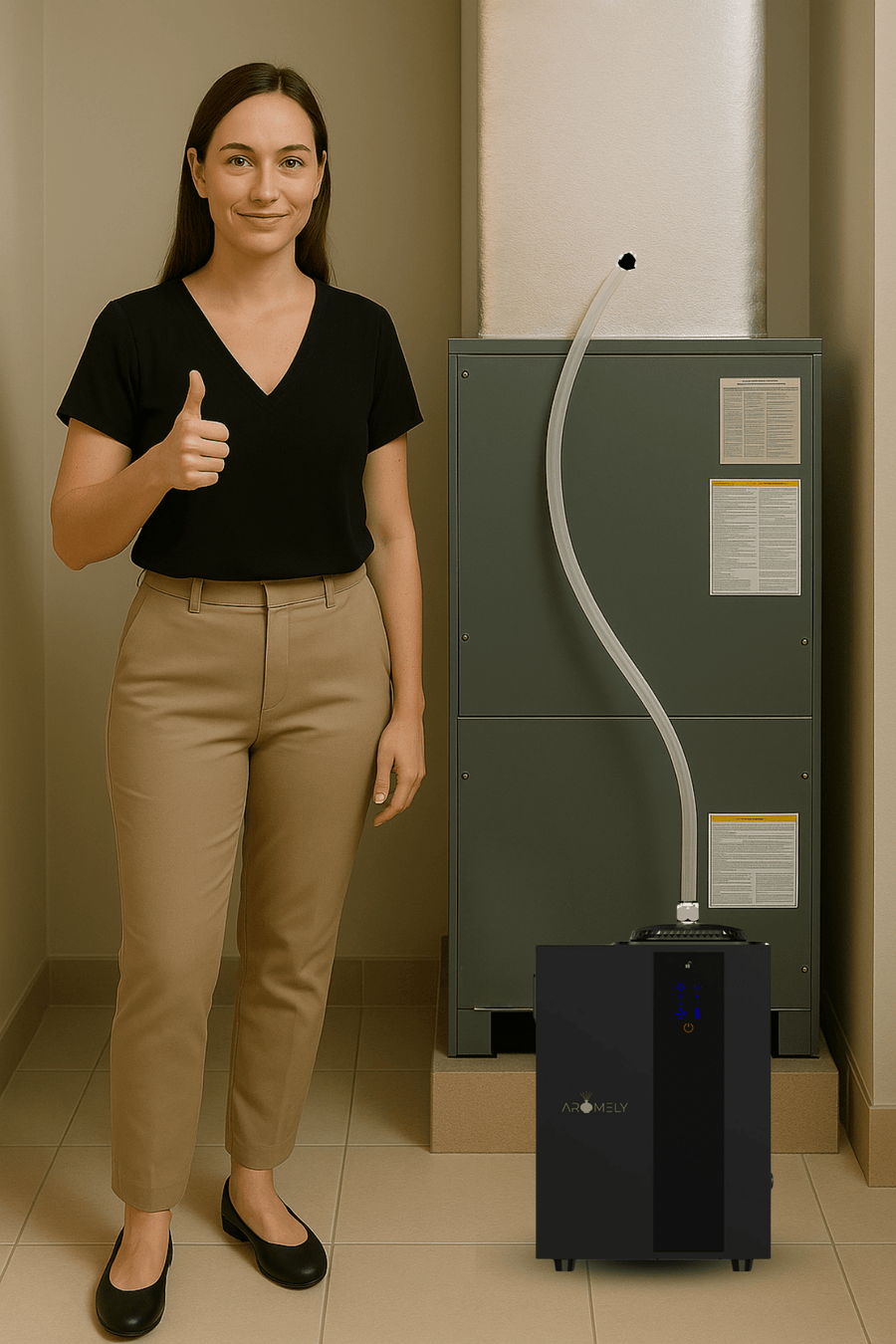
  1. Connect the hose to the quick nozzle and the hose connector, as shown. Test the hose length on a secure surface near a power source.
  2. Drill a hole in the air supply — the side of the system that blows air into the rooms, not the return — just large enough for the hose, and insert the hose 3 to 4 in (7.5–10 cm) into it.
  3. Once everything is set up, test the system from the Aromely app.
ARO-MAX — Connect to your HVAC
Help
8

Technical support from the app

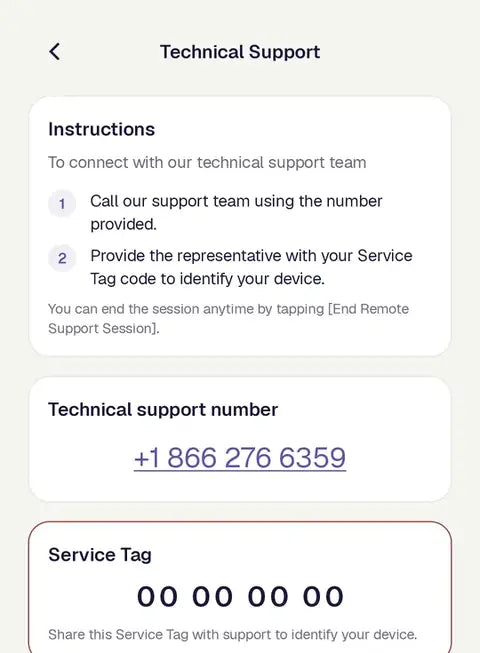
  1. On your diffuser’s screen, tap the headset icon. The Technical Support page opens with our number and your Service Tag.
  2. Call 866-276-6359 and give the representative the Service Tag — it identifies your device.
  3. If you agree to remote assistance, support can access your diffuser during business hours. End it at any time with End Remote Support Session.

Support hours: Monday to Friday, 9:00 AM – 5:00 PM EST. Outside those hours the page shows “Closed” — you can still email support@aromely.com.

Technical support from the app — Aromely app screen

Need a hand?

Call us Monday to Friday, 9 AM – 5 PM EST. Outside those hours our virtual assistant may be able to help.

← All setup guides